We begin with an overview of the CrawlNScrape menu system, then proceed to an example illustrating the flow through the app for internet crawling…
|
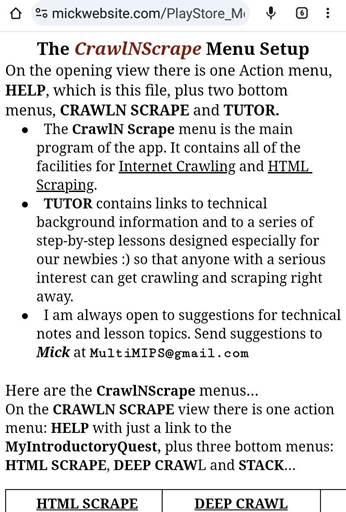
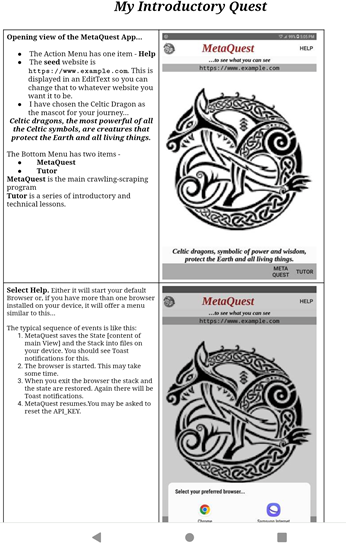
Opening view of the CrawlNScrape App → ● The Action Menu has one item - Help ● The seed website is https://www.example.com. This is displayed in an EditText so you can change that to whatever website you want it to be. ● I have chosen the Celtic Dragon as the mascot for your journey… Celtic dragons, the most powerful of all the Celtic symbols, are creatures that protect the Earth and all living things.
The Bottom Menu has two items - ● CrawlN Scrape ● Tutor CrawlN Scrape is the
engine for crawling the internet and scraping HTML code from websites. Mick MultiMIPS@gmail.com |
|
|
The Help files are served from my website at https://mickwebsite.com
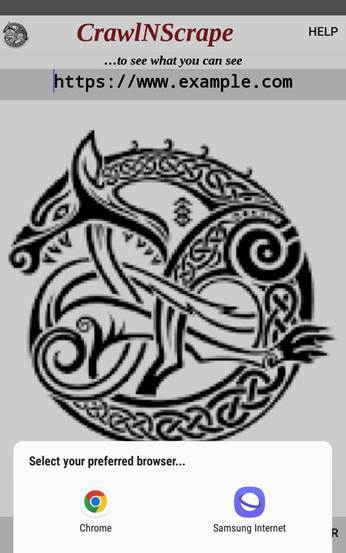
When you select Help it will either start your default Browser or, if you have more than one browser installed on your device, it will offer a menu similar to this → [Throughout this document the above Right arrow is pointing to the information so Swipe Left to see that information :) ]
The typical sequence of events is like this:
Note 1: Steps 1 and 6 above can be used anytime you want to exit from CrawlNScrape then return at a later time and have your breadcrumbs retrievable from the Stack.
Note 2: It can be useful as a general practice, to start the browser, Google Maps, and perhaps other utilities before starting CrawlNScrape, for the specific purpose of having them convenient to quick access in the background. |
|
|
This is the first page of this Help file →
If you have a small screen device it may offer you a choice to switch to a “simple” display. If you accept that choice it will be easier to read the text, but you may miss some of the images and important links 🙁 |
|
|
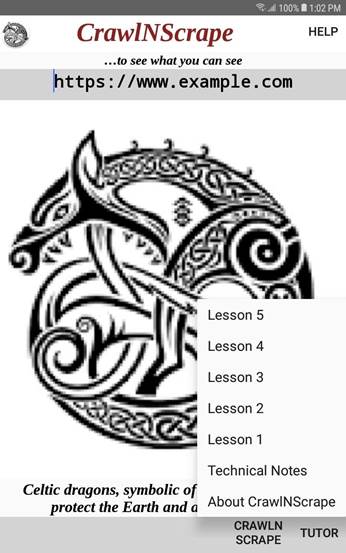
This → is the Tutor menu. From time to time I will include additional items. Users of CrawlNScrape are invited to suggest not only new topics for this menu, but also suggestions to improve the ones already there.🙂
Mick
|
|
|
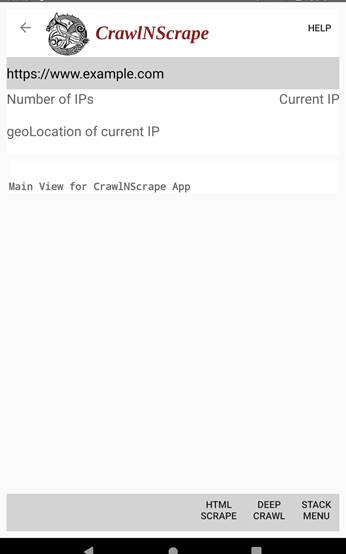
This → is the opening View of the CrawlNScrape menu item.
Note the navigation icon on the left side of the ToolBar [left directed arrow]. It works better to use this icon for exiting rather than the system icon which is along the bottom of your device.
There is one Action Menu - HELP There are three Bottom Menus - HTML SCRAPE DEEP CRAWL STACK MENU |
|
|
This → is the first page of this HELP menu… 🙂 |
|
|
The Stack menu → The Stack is central to the operation of Deep Crawling the internet with CrawlNScrape.
Note from Mick: The stack data structure is also known as a PushDown Stack or a LIFO [Last In First Out] queue. Each item pushed onto the stack goes on top of the previous item. The last item pushed onto the stack is the first one to be popped off. It works like a stack of spring loaded lunch plates in a cafeteria.
The Stack is ideal for simulating the proverbial “trail of breadcrumbs”, left behind during a walk in the woods, to find your way back. |
|
|
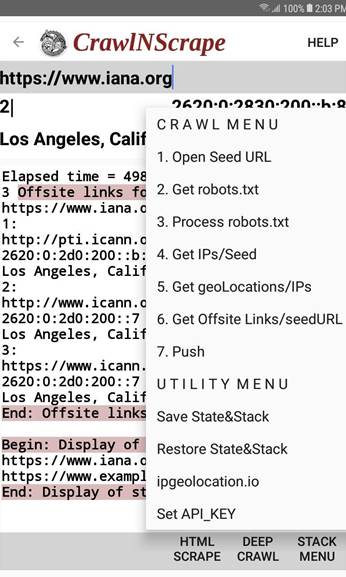
This → is the DEEP CRAWL menu. This is the engine for internet crawling.
The first 7 choices are numbered as this is the sequence in which they would usually be selected for internet crawling. As an ethical web scraper you will select and study the robots.txt file after opening the seed URL and before downloading from the website. Each of the 7 items may be selected or not, and in whatever sequence you choose. Usually you must choose 1. Open Seed URL first, and you must 4. Get IPs/Seed before 5. Get geoLocations/IPs.
Save State&Stack Restore State&Stack These choices save/restore the Stack and the State to files in the internal storage of your device. This is persistent storage. They will stay there until you explicitly delete them, overwrite them or uninstall CrawlNScrape. It is recommended that as you use CrawlNScrape you perhaps should use Save State&Stack often as you go along. It simply overwrites the previous contents. You can then restart and choose Restore State&Stack in any circumstance 🙂
API_KEY Each user of this app needs to have their own free, personal API_KEY in order to access geoLocations from the internet. An illustrated set of steps to follow to get and install your free, personal API_KEY is here… https://mickwebsite.com/MMWebSite/ipgeolocation.html You get 1000 free location lookups per day. That should be more than sufficient for using this app. You can sign up for a paid account if you want more 🙂 CrawlNScrape separately keeps a count of the number of accesses and displays that count in a toast message when each access is started. CrawlNScrape resets this count to zero whenever it is started on a new day. You can select Save State&Stack then select ipgeolocation.io from the DEEP CRAWL menu at any time to see the official count which is updated by the server every 20 minutes … and select Restore State&Stack on restart. |
|
|
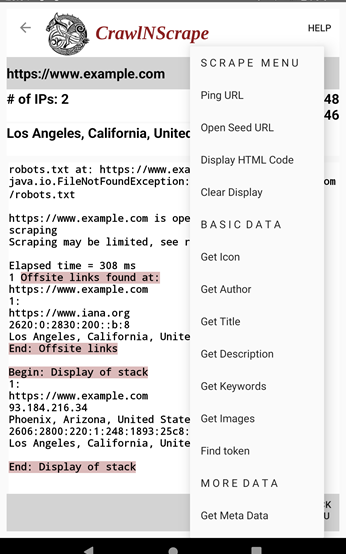
This → is the HTML SCRAPE menu, the engine for HTML scraping. It is basic HTML scraping, extracting specific items from the website. This long menu with many choices is divided into groups for convenience.
With the Ping URL and Find token items you must select this menu item twice - first to provide an element of data: a token for find, or an URL for ping, and second to start the Finding or Pinging process. Note: after pasting or typing the element of data you must press Done key →| before continuing.
You can use Find token to search the content of the in memory HTML code for items not listed here, or for more data on the items that are listed. For this purpose it might be best to first choose Clear Display and then Get HTML Code before choosing Find.
You are encouraged to try each of these choices on various websites to determine which may be useful or of interest to yourself. |
|
|
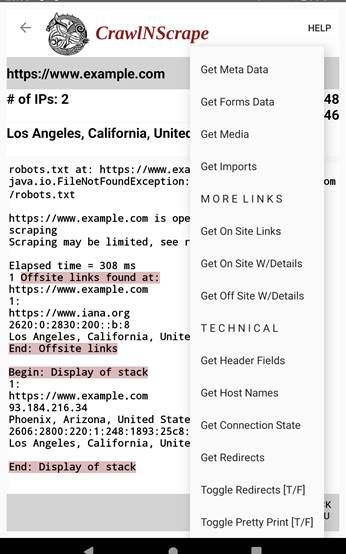
This is still the HTML SCRAPE menu showing it scrolled to bring the bottom menu items into view.
Serious, detailed technical information on all of these scrape choices and more is available at… OR at a tutorial here… https://www.javatpoint.com/jsoup-tutorial … and from other choices located using Google to search for jsoup ________________
This completes our overview of the CrawlNScrape menu system. Following is an example illustrating the flow through the app for internet crawling… |
|

|
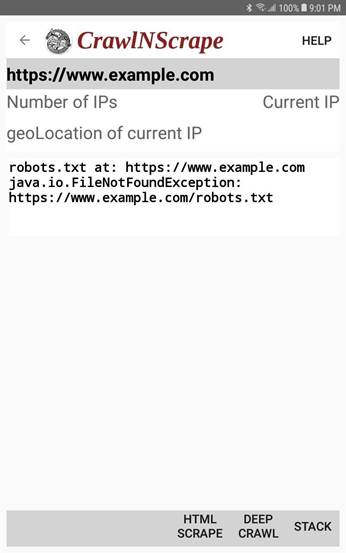
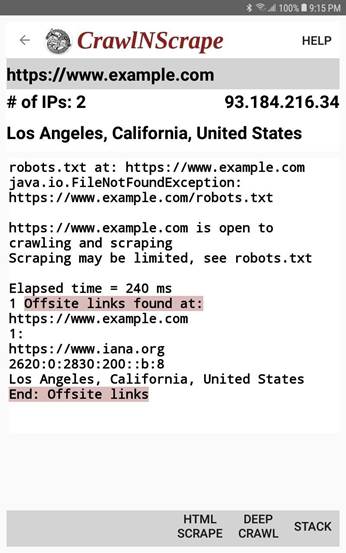
We have started our crawl at → https://www.example.com. You can edit this to any website. As good web crawlers we begin with the DEEP CRAWL menu 1. Open Seed URL and 2. Get robots.txt Note where it says FileNotFoundException → This website has no robots.txt file so we are free to crawl and scrape at will here 🙂 |
|
|
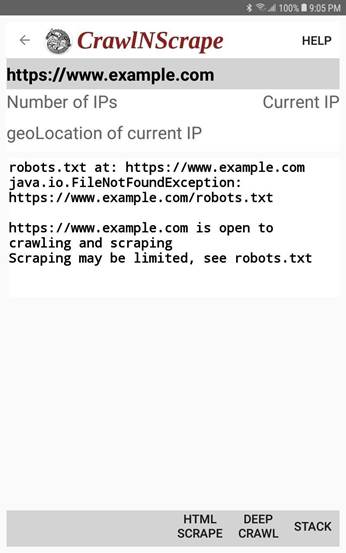
Next we selected… 3. Process robots.txt to confirm that we can go ahead → |
|
|
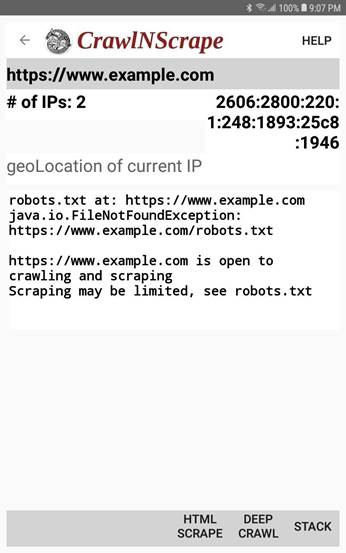
Here → we have selected… 4. Get IPs/Seed This gets all* of the IPs for the seed URL. Note that it says that there are 2 IPs. The first is… 2606:2800:220:1:248:1893:25C8:1946
This is an IPv6 IP address. IPv6 is written in hexadecimal notation, separated into 8 groups of 16 bits [4 hex digits] by the colons, leading zeros omitted. Occasionally there is a double colon :: which has a specific meaning. Please do a Google search for IPv6 format to learn about this.
To see the 2nd IP, swipe to the right on the IPv6…
*Note from Mick: I have
noticed that, for a given URL, newer devices may retrieve more IP addresses
than do older devices. I have not yet investigated this further. If you also
notice this you could email me at: |
|
|
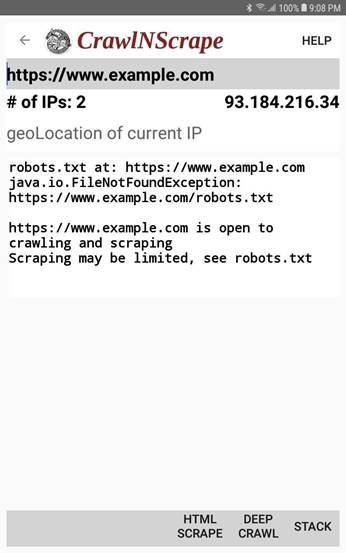
This → shows the second IP. This is an IPv4, written as 4 groups of 3 decimal digits each group between zero and 255, with leading zeros omitted.
Questions from Mick: Question 1: What is the maximum number of IPv4 addresses?
Question2: What is the maximum number of IPv6 addresses?
If you are a math lover you may already know the answers, or you may love the challenge of doing the calculations. Otherwise Google knows everything! And you probably know why “they” created IPv6.
|
|
|
We have selected… 5. Get geoLocations/IPs → 6. Get Offsite Links/seedURL → One offsite link was found:
There is often, but not always, more than one IP for each seed URL, and possibly a different geoLocation for some of those IPs. CrawlNScrape retrieves all of the IPs and their corresponding geoLocations.
As you swipe right on the current IP to see the next IP, the corresponding geoLocation moves into its position.
Note from Mick: The elapsed time is the number of milliseconds [1/1000th of a second] spent on the internet and out of this app while retrieving this data. Google gets unhappy with apps that spend more than 5000 ms [5 seconds] like that. It often happens with CrawlNScrape that these processes exceed that Google specification, sometimes by a large amount. If the app should crash you may just restart and try again - no harm has been done, especially if you have used the Save State&Stack choice as you can now use Restore State&Stack from the DEEP CRAWL menu and be on your way again. I have not run into this problem with any of my 3 devices. |
|
|
Select 7. Push… to push the example.com breadcrumb onto the stack. On a serious crawl I always make this choice immediately after 6. Get Offsite Links/seedURL
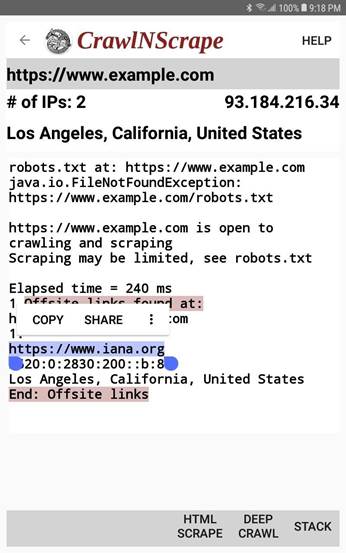
We Selected the text of the new URL and Copied it to the system clipboard → |
|
|
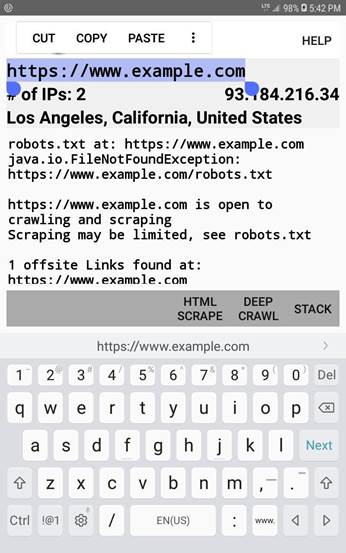
Now we have selected the old seed URL and will Paste the new one into its place → |
|
|
The new seed URL has been Pasted into place →
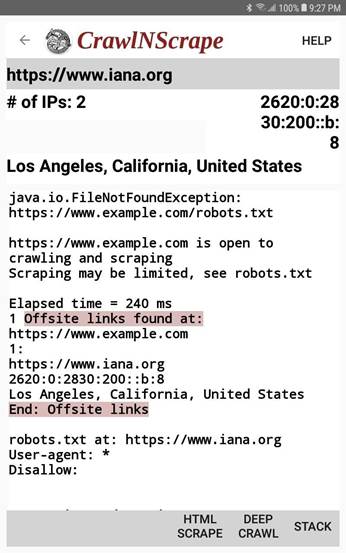
We then did… 1.Open Seed URL 2.Get robots.txt 3.Process robots.txt This time there is a robots.txt file [scroll your eyes to the bottom of the pic at right] which applies to all internet bots, spiders, crawlers, etc including CrawlNScrape and its users, and which disallows nothing. So we can once again crawl and scrape to our hearts content… 🙂 4.Get IPs/Seed 5.Get geoLocations/IPs 6.Get Offsite Links/seedURL |
|
|
This slide shows an IPv4 for iana.org… →
Each URL may have a variety of IPv4s and/or IPv6s. There is no rule about having certain quantities of each.
Note from Mick: It is theoretically possible that, where there are multiple IPs for a single URL, the various IPs may not all have the same HTML code. I believe that this generally is not the case, so I have coded CrawlNScrape to search only by the single URL rather than by the multiple, individual IPs. Maintaining a website is a big, complex task. IMO, maintaining multiple, similar websites would be a bit of a nightmare that virtually no one would choose. Please let me know if you have evidence to the contrary and I will consider changing my code.
|
|
|
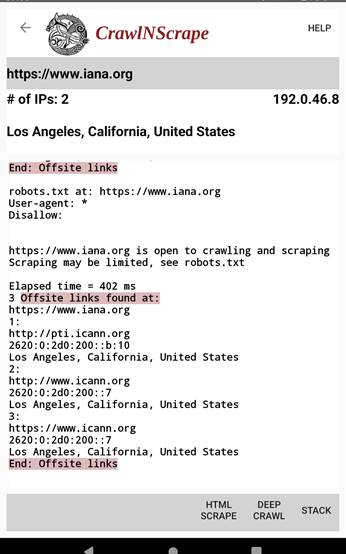
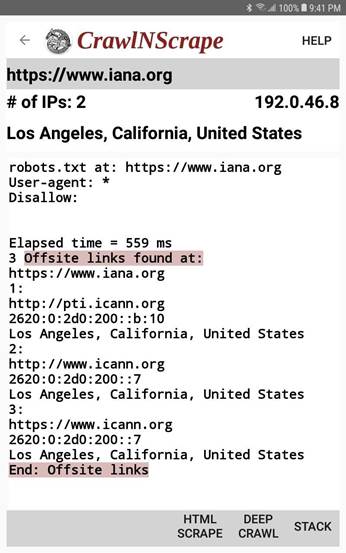
This → shows the 3 offsite links retrieved from iana.org
Note that the 3 links do not all have the same IPV6 but do have the same geoLocation; one of the URLs is secure [https].
Select… 7. Push to push the iana.org breadcrumb onto the stack |
|
|
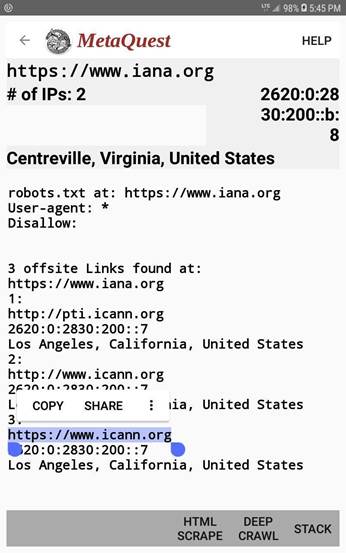
Here → I am selecting and copying the third offsite link which points to https://www.icann.org… |
|
|
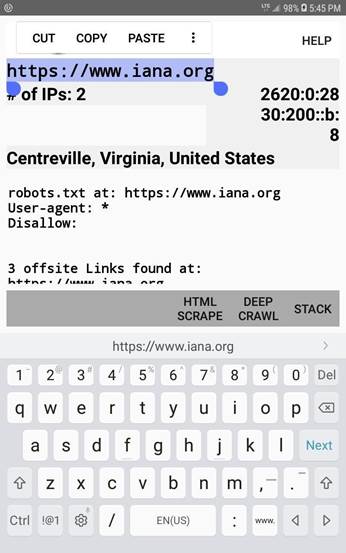
I am prepared to paste the new link here → |
|
|
New link to icann.org is pasted, then →
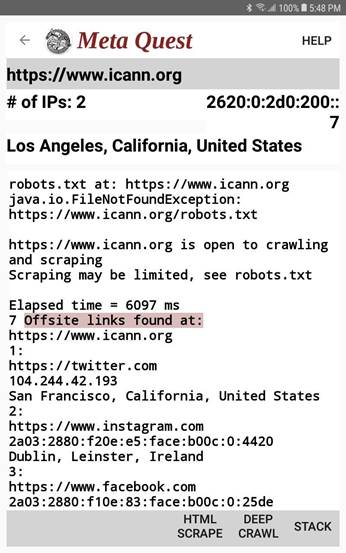
robots.txt was not found so nothing is disallowed 🙂
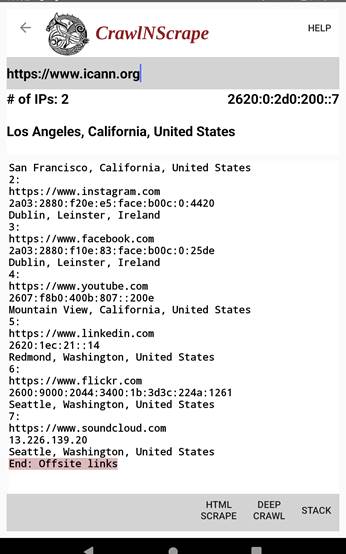
7 Offsite links were found → |
|
|
7 Offsite links were found → |
|
|
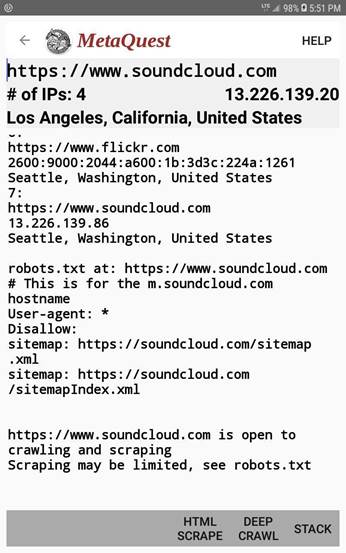
The 7th link goes to soundcloud.com →
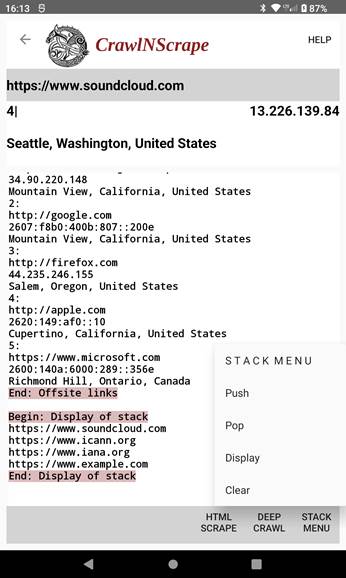
I have.. ● Copy|Past’ed it into the seed URL ● Opened the Seed URL ● Retrieved the 4 IPs and corresponding geoLocations ● Queried the robots.txt. It wants to allow us into anything except the two sitemap files.
Note from Mick: In order to better understand the robots.txt files it would be useful to do a Google search for something like how to read roberts.txt. Here is one link… https://www.seerinteractive.com/insights/how-to-read-robots-txt |
|
|
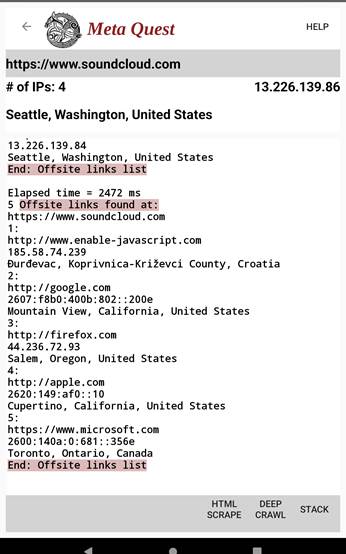
At soundcloud.com we find 5 offsite links, we copy/paste the URL for the first one → simply because it looks interesting Then… 2. Get robots.txt 3. Process robots.txt 4. Get IPs/Seed 5. Get
geoLocations/IPs 7. Push → |
|
|
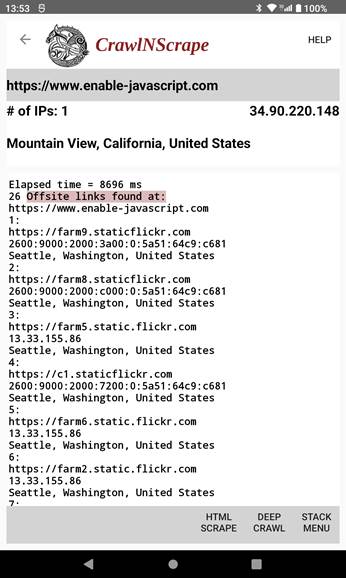
It has 1 IP, it is an IPv4
So, we have arrived at an interesting destination →
Note the huge amount of elapsed time, almost 9 seconds → for that retrieval of these 26 offsite links from the internet. That same step took almost 20 seconds using a different device at a different time. Both are far in excess of the 5 second maximum expected by Google.
Note also that the number of links available from any website will change as updates are made by the website owners. In the recent past CrawlNScrape has retrieved as many as 33 links and as few as 24 from this site.
Links 1 to 6→ |
|
|
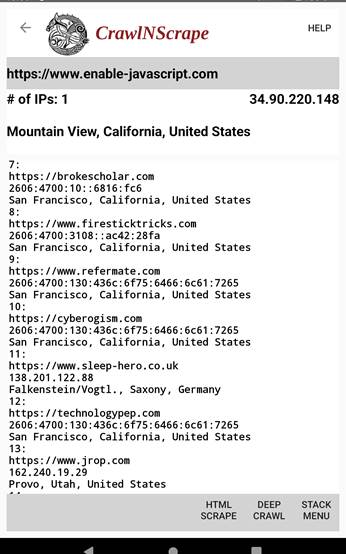
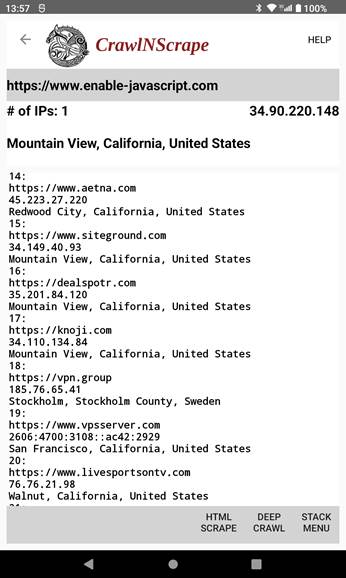
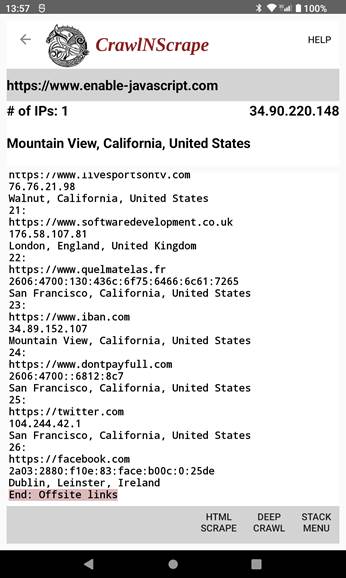
→ and note that the 26 offsite links 🙂 point to ● Falkenstein/Vogtl., Saxony, Germany ● Stockholm, Stockholm County, Sweden ● London, England, UK ● Dublin, Leinster, Ireland And several places within the USA.
Links 7 to 13→
[Continued below] Links 14 to 20→ and Links 21 to 26→ |
|
|
|
|
|
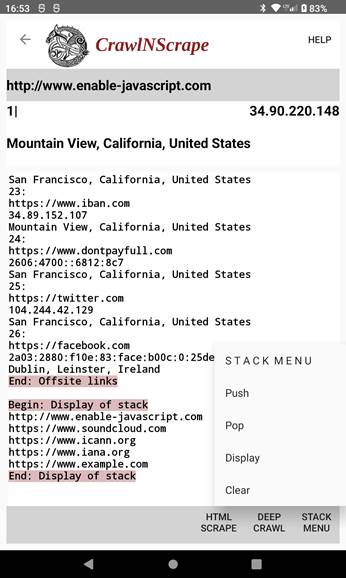
Added note 1: At the bottom of this slide → is a display of The Stack showing our breadcrumbs that we accumulated during this internet crawl.
Each stack element contains only the URL for the website. This allows you to revisit them to continue your crawl. Note in particular that the items are in the “Stack” sequence, the reverse order from which they were pushed, with example.com at the bottom and javascript.com at the top 🙂
Added note 2: To prepare for this crawl I did these steps before starting my crawl…
This removes traces of any previous run of CrawlNScrape from the stack and from the state. 🙂
|
|
|
This completes the example illustrating the flow through the app for internet crawling.
I check this email every day. Any comments are appreciated and all questions are answered. 🙂 Mick |
|